Class Companion – AI Tool Review

Today I took some time to have a peek at a formative assessment tool for students’ written work. I used a portion of my own literature review for my dissertation to ascertain what the tool is capable of. I was actually fairly impressed.

Teacher Dashboard

The teacher dashboard is easy to navigate. Like most learning management systems, you create classes in the dashboard and you push assignments out to students. The AI in the dashboard can assist you with creating a writing assignment, and once you have your assignment inputted, you then determine which classes you are assigning it to.

Student View

The student side was also very familiar in its appearance. Students see assignments they are expected to complete, and the layout is logical. Students also have a button to dispute their grade, which will send a message to the teacher regarding this. Student-self-assessment is always a goal in education, and used intentionally, the dispute opportunity for students can compel some self-reflection of their work.

It is in the writing of the student that the magic happens.

Assessing the Tool

For my assessment of this tool, I created a class and I assigned an essay on this history of AI. I then added a fake student to my class, and assigned the essay to this fake student. Then I grabbed a Chromebook and through the email from Class Companion, I was able to join this fake class.

I opened the assignment and was greeted with a space in which to complete my essay. I opened my literature review chapter and copy/pasted my first three paragraphs into the tool. It took some time for it to assess my work, (it wrote some entertaining phrases on the screen while I waited) and I must mention that I did not provide the entire essay to the tool, so some parts of the formative assessment are weak due to the tool not having all of my writing to assess (no conclusion, namely!)

Overall

Additional testing revealed that it will adjust its scoring if the teacher changes the rubric, and the overall formative assessment was accurate, as tested by teachers.

There is an interesting reflective opportunity for teachers here; an opportunity to compare their own grading against that of the AI tool. That’s not to say that the tool is correct and the teacher is wrong; not by any stretch. It’s just an opportunity for teachers to consider their rubrics and their own tendencies when grading is occurring.

As the teacher, I can override grades given by the tool, allowing me to have the final say as to a student’s performance on the written task.

Overall, I was impressed with this tool.


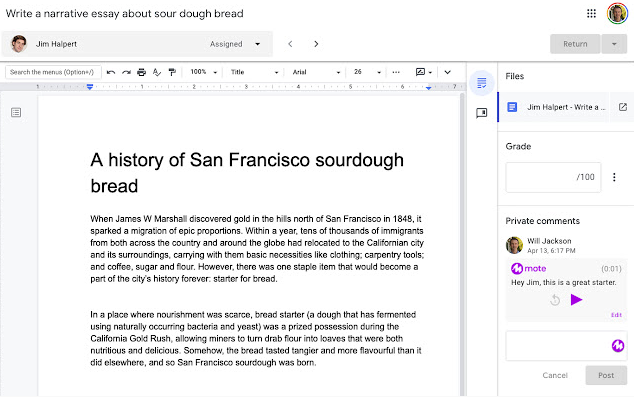
Mote – Give voice feedback instead of typing

Offering feedback and formative assessment can be time-consuming. The Mote extension for Chrome offers you the opportunity to record your voice giving the feedback as opposed to typing. A great alternative for those whose keyboarding skills leave a bit to be desired.

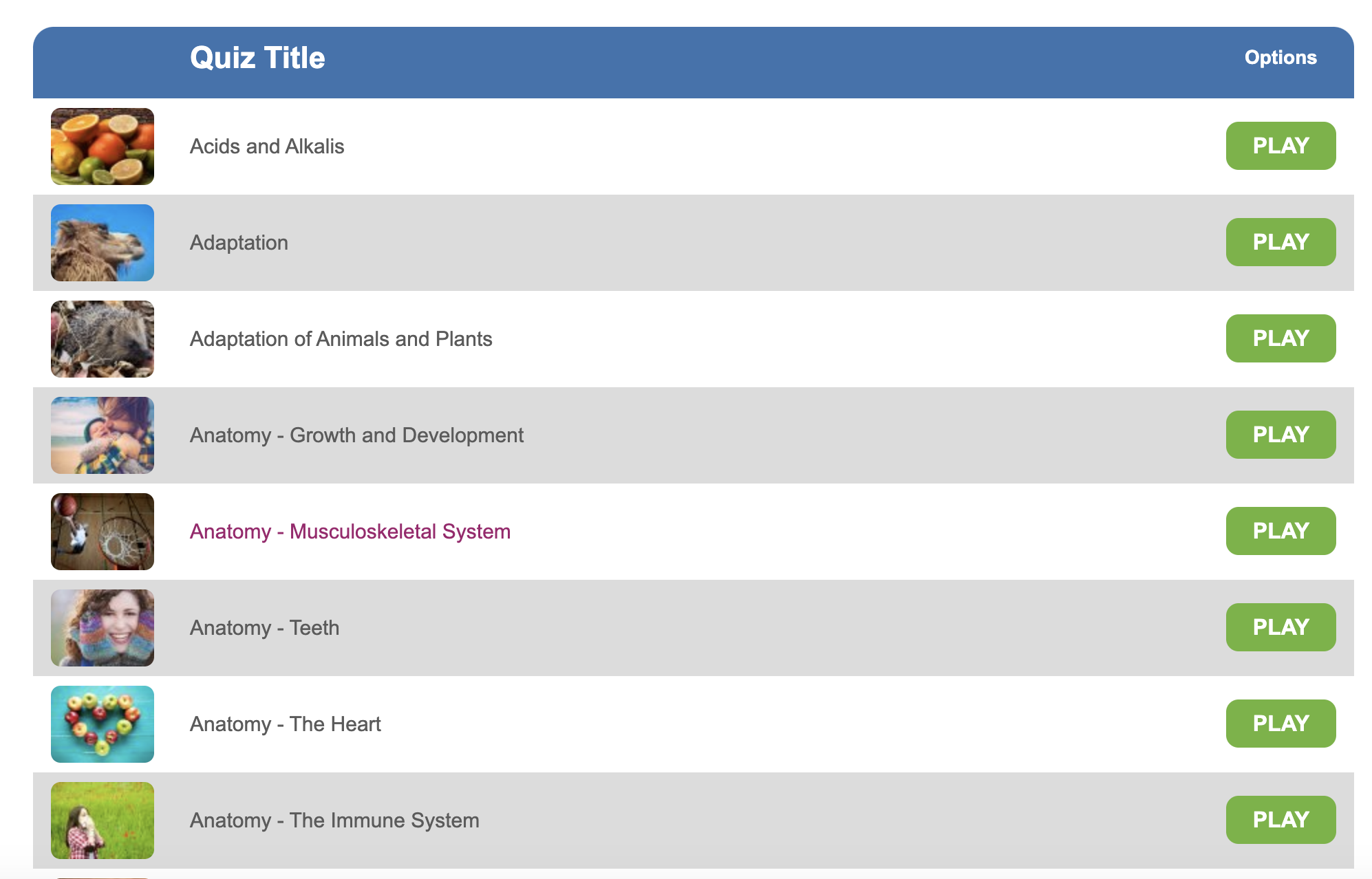
Middle School Science Quizzes

Education Quizzes offers a wide range of quizzes on a variety of topics. It is American in its content, but science crosses all borders. 

This tool should be used as a supplemental tool and for practice quizzes. It requires payment to have an account, but the quizzes can be used without logging in.

Plickers – Top App for all grades

This app is a super cool use of technology in the classroom in that you only need ONE DEVICE to engage an entire class. The teacher needs a cell phone or a tablet – that’s it.

In a nutshell (and it is so easy!)….

BEFORE CLASS…
Open an account at www.plickers.com
Print off a set of the cards at https://www.plickers.com/cards – they look like space invaders. They’re weird!!!
Enter classes and students you would use the app with.
Download the Plickers app to your phone.


Plickers will automatically assign one of those cards you printed off to each student.
Create a bank of multiple choice questions on your computer, in your plickers account.
Select the questions you wish to assess during your classes and add them to the queue for that class.

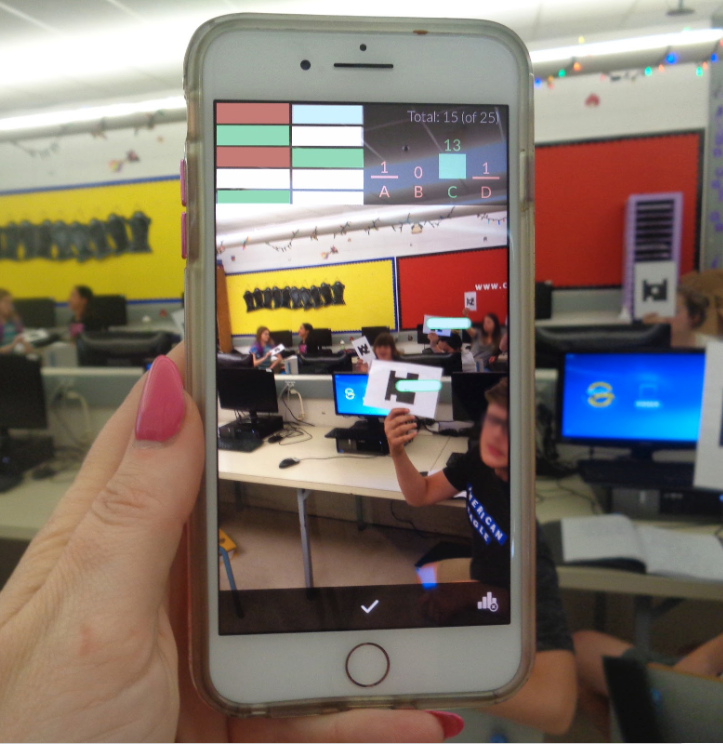
(Above photo is from my own class)

IN CLASS

Distribute the cards to the students as per Plickers’ assignment of them.
Broadcast (from your Chromebook) www.plickers.com on your TV or through your projection system and click on LIVE VIEW (this is optional, but kids LOVE it).
On your phone/tablet choose the class you are teaching during that block.
Select one of the questions from the queue that you wish to assess for student understanding.

Students will select their response from the 4 multiple choice responses and will hold their unique card up with the letter pointing UP that represents their choice to respond with.

You will hold your phone up and scan the classroom and the students’ responses will be logged. 

WHY TEACHERS LOVE IT

– First of all, IT IS SO EASY TO USE

– A red or green oval will appear above the heads of your students. Green, of course, indicates they answered correctly, red indicates their response was incorrect. This particular app keeps the teacher INVOLVED and ENGAGED with the learners. You see with your eyes in a matter of seconds who understands the content and who is struggling. It’s not just data on a screen; it’s live, it’s real-time, and it’s an actual visual of your classroom. You finish the class block with a lot of good information as to what needs to be re-taught or reviewed, and with whom.

– Because the shapes appear so random to the human eye (and the letter markings are printed so faintly) cheating is not possible unless a student shouts out their answer.

– It uses the camera of your phone/tablet with Augmented reality features to give you the visual representation of learning as you view your class. The photo was taken in Michelle Baragar’s classroom during the 2017-2018 school year. 

THINGS TO NOTE:

Laminating the cards will make them last longer, of course, but depending on the positioning of windows in the classroom, the glare from the laminate can make scanning the students’ cards a wee bit more challenging.

Students can change their mind about a question. All they need to do is change the direction they are holding their card and ask you to re-scan it.

Sick of Kahoot?

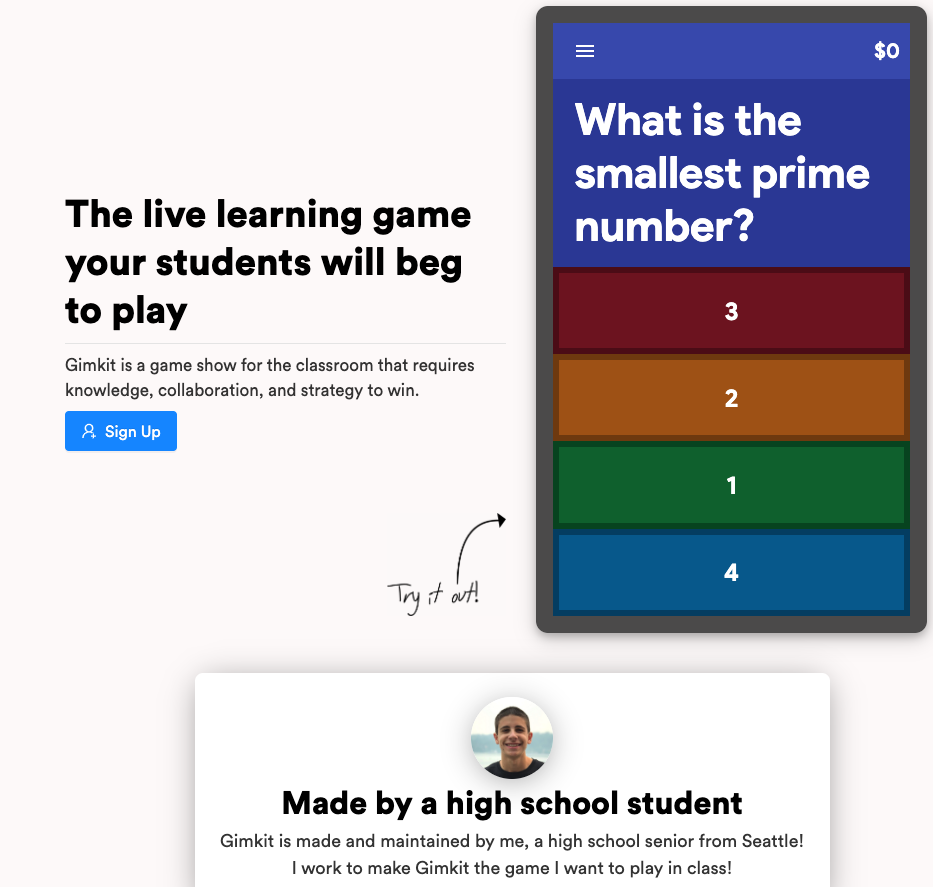
I know in my classroom last year, kids were getting pretty sick of Kahoot. They loved the engagement, but it was the go-to app that EVERY teacher used. It wasn’t novel any more. It was common. I’d love some feedback on this newcomer to the domain of “Student response systems”. It was designed by a high school student, it’s free, and it has a gamified element where their accumulated points from in-class engagement allows them to make “in-game purchases” with the points – so they have more at stake than just having their names appear on the podium at the end of the quiz. In theory, it should reduce kids answering with silly responses because of the secondary game that their overall points afford them.

Many thanks to Steve at CP Blakely for his professional review after trying it out in his classroom: “Overall, loved the experience and engagement levels for students, just wish there was a bit more on the teacher’s end of things.”

PROS:
– Students review materials at their own pace (as opposed to a whole-class game of Kahoot) – You don’t have to wait for the class to go to the next question
– You can “do something” with your points (i.e., the shopping experience), which in turn motivates students even further to answer questions correctly
– Highly engaging

CONS:
– If you don’t have an even number of students, the teams will not have the same amount of people, giving larger teams the advantage when collecting cash.
– Some students reported some lagging/auto-tapping answers.
– As a teacher, the free version of
GimKit does not allow me to edit “Kits” (or games) I’ve already created. I didn’t know this before I started one, and when I went back to edit it later, I realized I couldn’t. I could have made a new one, but we’ve only got 5 games with the free version as well.
– The data in the reports is not as manipulable or user friendly as Kahoot’s is (if we’re just comparing these two platforms), which is the sweet-sauce for me in using these sorts of games.

Google Classroom Hack You Need

I discovered this little trick by accident. But it made a HUGE difference to me as a teacher.

For the past 18 years, I have taught Technology in a junior high. I had my students twice per week for 40 minutes. That meant that my total number of students to issue grades for by November was in the range of 360. To boil that down – I had a HEAP of missing assignments to try to track down. It was HARD. Of the 360 students I was teaching, generally about 220 of them were grade sevens, new to our school, and unfamiliar to our teaching staff. So, I didn’t even really know which students to even keep an eye on. Here’s what I discovered.

I would start a blank document in my own Google Drive and I’d put the assignment name on it. It didn’t matter if it was a doc, a sheet or a slides assignment. I’d start a blank one with the assignment name on it, and then I’d close it down. Weird right?

Then I’d type up my assignment instructions in Google Classroom. I’d attach that blank document to the assignment and then I’d change the drop down menu to say “Make a copy for each student”. (It’s still a blank document!)

What that did was, it gave me a thumbnail view in the “Unsubmitted” view. Students who were taking the assignment and running with it would have typing appear on their thumbnails. Students who were not making progress continued to have shiny white (blank) thumbnails. I knew at a glance which of my students were needing me to intervene. It saved me SO MUCH WORK AND SO MUCH STRESS! This little discovery was a game-changer for me.

Pear Deck for Google Slides

…and score some formative assessment feedback for yourself in the process.

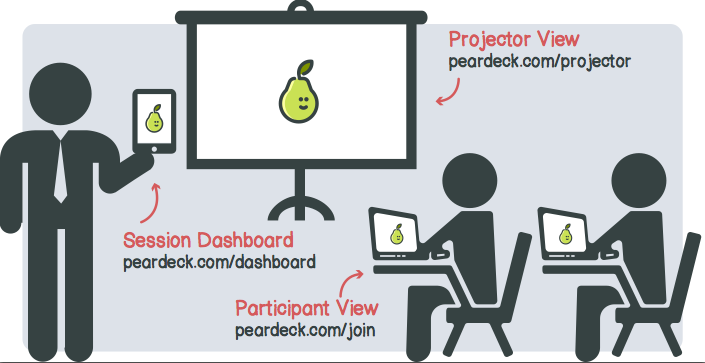
Take a peek at Peardeck to accomplish these things. Peardeck contains a number of slide templates to ask questions during the process of learning and in so doing offers you, the teacher, a wealth of information as to how the learning is going.

Ditch that Texbook gives some good tips for using this fantastic add-on.

If you’ve used it, please don’t hesitate to offer some feedback to me on the ease-of-use or the challenges with it. When offering recommendations, I do like to be able to articulate these things to the person I’m speaking to.

Pin It on Pinterest