Google Classroom Hack You Need

I discovered this little trick by accident. But it made a HUGE difference to me as a teacher.

For the past 18 years, I have taught Technology in a junior high. I had my students twice per week for 40 minutes. That meant that my total number of students to issue grades for by November was in the range of 360. To boil that down – I had a HEAP of missing assignments to try to track down. It was HARD. Of the 360 students I was teaching, generally about 220 of them were grade sevens, new to our school, and unfamiliar to our teaching staff. So, I didn’t even really know which students to even keep an eye on. Here’s what I discovered.

I would start a blank document in my own Google Drive and I’d put the assignment name on it. It didn’t matter if it was a doc, a sheet or a slides assignment. I’d start a blank one with the assignment name on it, and then I’d close it down. Weird right?

Then I’d type up my assignment instructions in Google Classroom. I’d attach that blank document to the assignment and then I’d change the drop down menu to say “Make a copy for each student”. (It’s still a blank document!)

What that did was, it gave me a thumbnail view in the “Unsubmitted” view. Students who were taking the assignment and running with it would have typing appear on their thumbnails. Students who were not making progress continued to have shiny white (blank) thumbnails. I knew at a glance which of my students were needing me to intervene. It saved me SO MUCH WORK AND SO MUCH STRESS! This little discovery was a game-changer for me.

Free Math Apps for Chrome

Fractions? Geoboards? Clocks? Vocabulary cards? Number Frames? The Math Learning Centre offers a small, but high quality selection of Chrome apps to assist with teaching mathematics. Have a student who has finished their work early? This resource may have what you need! Equally, if you have a student who is struggling, you may find something of value here.

Coin Games – Learn About Money

Learning about money has always been challenging. It may perhaps be even more challenging to a generation who sees adults using much more plastic and now even cell phones as a mechanism for payment. But the fundamental concepts of currency and financial transactions are as important as ever.

The MATH IS FUN website has some games for kids to play to assist with learning about money – and they even have CANADIAN coins! 


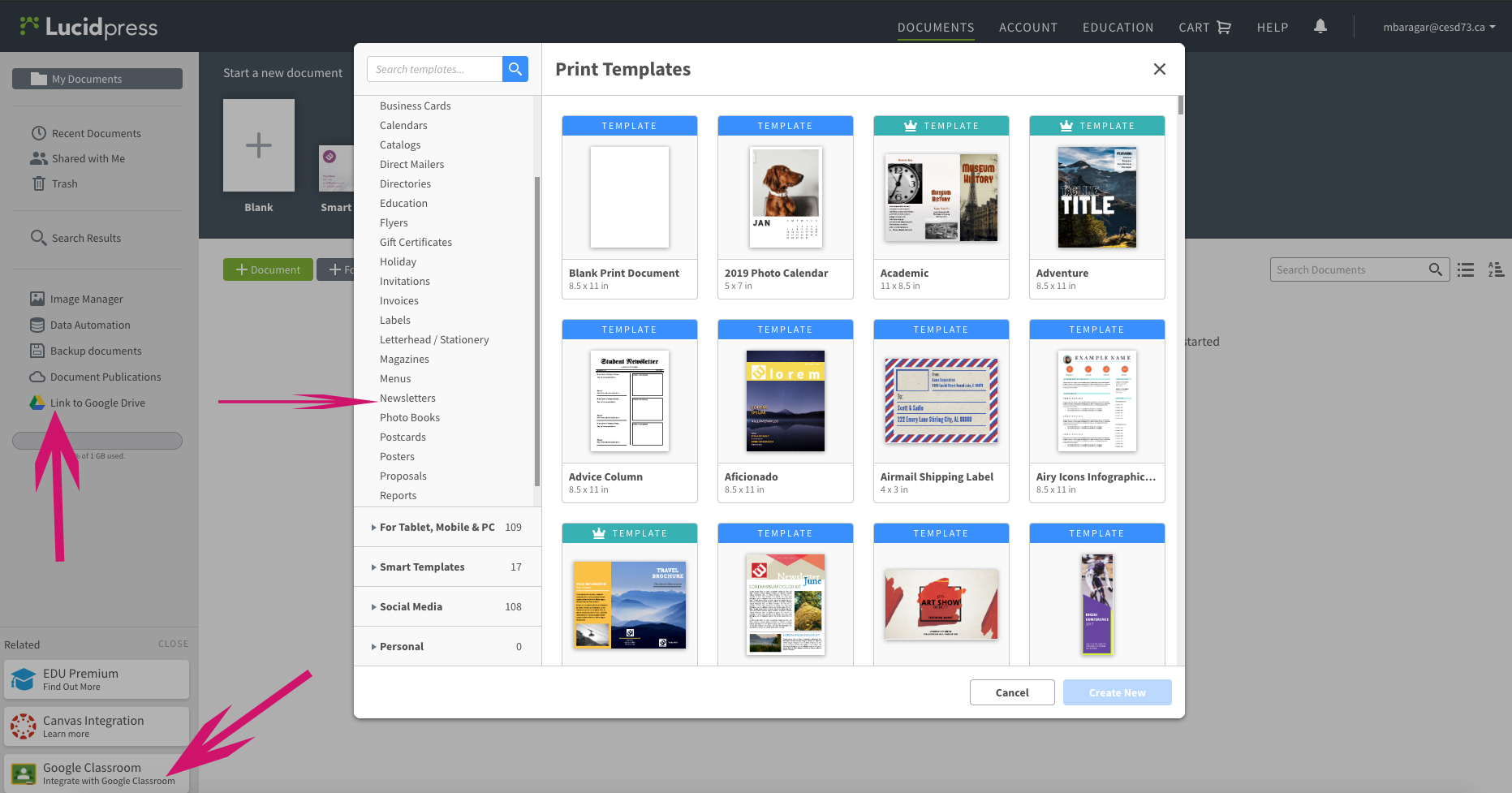
Desktop Publishing with Lucidpress

One of the most common challenges new users to Chrome face is finding a replacement for a desktop publishing program. While there are many such programs on the market, one of the more familiar ones is Publisher.

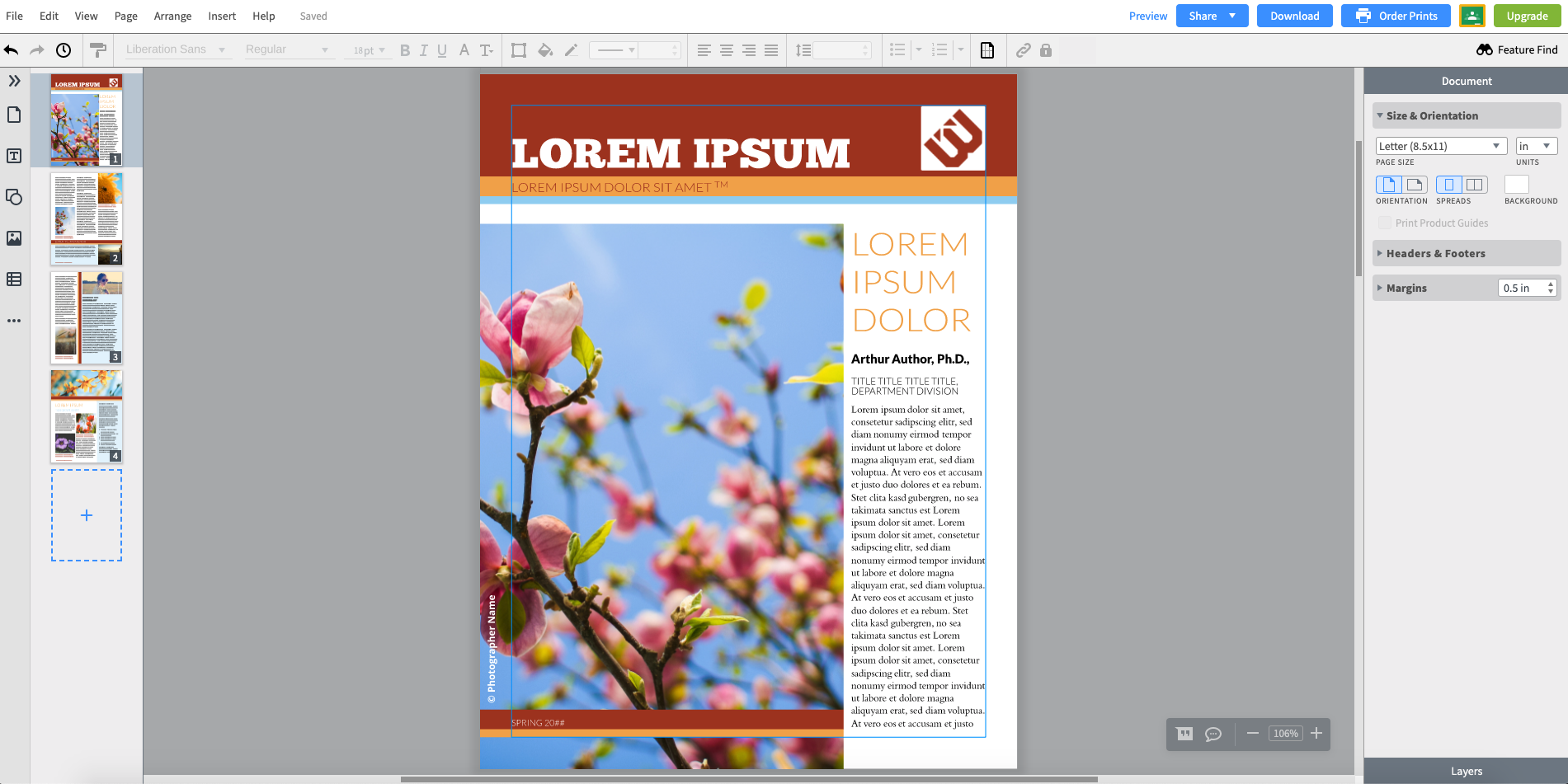
The cool thing about the replacement – it’s WAY better than Publisher. The designs are more modern, the fonts are cooler and the layouts are not from 1995. Take a look at Lucidpress. The website itself boasts a nice layout, simple interface, and direct connection to both Google Classroom and Google Drive.

Further, there is a Lucidpress extension for Chrome, putting the power of Lucid right at your fingertips!

Catch Plagiarism with Draftback

Plagiarism is a serious consideration in any classroom, and it can be tough to conclusively catch. Obviously, teachers can copy/paste the segment in question and do a Google search of the content and you may learn something, but that can be a slow, arduous process.

What if you could watch the writing process your student went through on a time-lapse video? You actually CAN, and it’s awesome!!

With a Chrome Extension called Draftback you can watch your student’s writing process as a time-lapse video. Simply install the extension linked above, and you can have an instant replay of the assignment’s work!

Plagiarism becomes very obvious when you see a sudden large paragraph appear on the time-lapse replay!

Math Pickle

Math Pickle is an amazing online resource containing math puzzles, games a mini-competitions, organized by grade! This site is aimed at TEACHERS. It is not a site to set your students loose on to explore, it is designed to assist teachers with math instruction and offers fantastic puzzles to challenge students to us mathematical thinking and logic to solve.

Chrome Music Lab

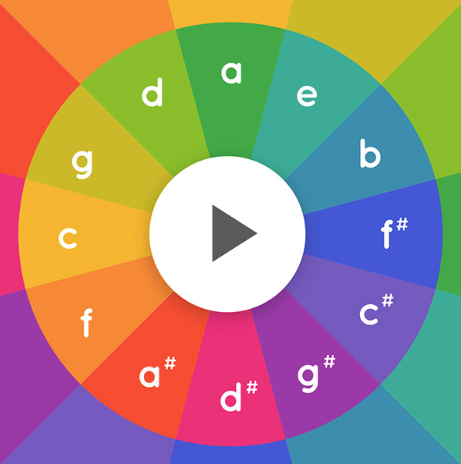
Chrome music lab makes learning about music more accessible through its myriad of sound resources through which children can experiment and learn.

Your students can experiment with song making, rhythm exploration, sound waves, melody and more! Music involves both hemispheres of the brain, and is an excellent mechanism through which to support learning and creativity. This site is excellent for special education students as well.

If your students create and post a song, please email it to Michelle to post here!

Recreating your “Desktop” in Chrome


It’s a bit different, but just as effective.

 In addition to being able to use colours on folders to assist with organizing, there is another handy trick.  You may have already discovered this, but if you haven’t tested this out yet, it’s how I replaced my desktop when I became a Google Educator.  You can right click on anything in your Google Drive (folder or individual document) and you will see that one of the options in the fly-out menu is “Add to Starred”.


    Anything that you add a star to will appear on the left side of your drive when you click the link that says “starred”. As a teacher, I always starred the unit I was currently teaching so it would be quickly available, then I would unstar it at the end of the unit and apply the star to the next topic. If you look at the following image, this is what my “Starred” drive presently looks like:

    When I was teaching I always kept other frequently used documents in there (the Google doc with the ongoing staff meeting minutes, the list of classroom phone numbers, the detention room supervision schedule). Essentially it was the functional equivalent of my windows desktop.

    And one last thing – don’t forget it you swipe upward from the lower portion of your touch screen chromebook you have shortcuts to a myriad of your Google resources – there are shortcuts to things like Drive, Kami, Read and Write and many other extensions, including extensions you’ve added yourself.

    Text on a Screen and Meaning

    I never said she stole my money.

    I never said she stole my money.

    I never said she stole my money.

    I never said she stole my money.

    I never said she stole my money.

    I never said she stole my money.

    I never said she stole my money.

    The image shown on this post provides a valuable classroom lesson regarding the loss of meaning when communication occurs primarily, predominately, or only in a digital environment. If I had texted you those seven words, what would I be communicating to you? It’s actually pretty vague and open to the interpretation on the part of the reader if we pause to consider it. Which word are you supposed to put the emphasis on? You have no way of knowing! But depending on which word you put the emphasis on, this seven word phrase can have seven different meanings! Try it out!

    Is it any wonder kids with cellphones are often embroiled in miscommunication? Is it any wonder adults find themselves in awkward situations with texting? It can happen so easily when we are communicating in a digital environment!

    What are Extensions & Add-ons?

    I think we’ve all heard the phrase “There’s an app for that!!” – the GSuite/Chrome environment is part of that vein of thinking. If there is something you have in mind to do with your document or presentation or even spreadsheet, it’s likely that with an extension (those are for Chrome) or an add-on (those are for the individual pieces of software such as Docs, Gmail Slides…), you just might be able to do what you have in mind – perhaps more!

    Generally speaking, extensions are installed into the Chrome Browser and give you an advantage or extra features in more than one application (for example, if you install the Bitmoji extension you will have the Bitmoji icon to the right of your Chrome address bar where your other extensions are (like Read & Write), and you will also have it in the Compose menu of your cesd73 Gmail account.  Add-ons are specific to a particular application. An example of an add-on is Pear Deck – it is only valuable in Google Slides. It would be useless to have in Gmail, Sheets or elsewhere.

    To find extensions for your Chromebook, go to the Chrome Store (easily found by searching “chrome store in the future) and search around. 

    To find Add-ons for the software you are using, open that software (so, open Slides for example) and look at the menu titles. One of the menus in all Google Software is “Add-ons” – in that menu you can get new add-ons (now would be a great time to add Pear Deck onto your slides account), or you can manage the add-ons you already have installed.

    This is where you really harness the power of GSuite for Education. The stuff you don’t need for your particular class are not slowing your Chromebook down, and the stuff you do need can generally be found – – and more!

    Gamification Field Trip

    The Battle for Scientia Terra

    On March 11, a small group of educators from CESD took a professional field trip to Fort Saskatchewan to visit the classroom of Scott Hebert (@MrHebertPE ) to witness an imagination-filled gamified classroom – a game that Mr. Hebert (Master Heebs in game) has invented to suit his own classroom. The majority of items in Mr. Hebert’s classroom have been created by hand, from his own imagination and at minimal cost. In terms of classroom engagement – Wow!! The story of Scientia Terra has his students working (call it playing – it sounds so much more pleasant!) and learning. Scott is very active on social media, he facilitates excellent conversations on Twitter, his YouTube channel is very active, and he’s even done a TED talk about it!!

    If you’re interested, please check out his online resources (including the books he has written) as you will see much more. We’ve posted only photos that do not include students for privacy protection. Scott has permission to show much more than we can!


    Ed Tech Tips, Tricks & Hacks #4

    This edition of Ed Tech Tips, Tricks & Hacks contains nuggets of wisdom on:

    • Ed Tech Framework (This site!)
    • Carmen Sandiego (the new one!)
    • Seesaw
    • Buncee
    • Annotate.net
    • Flipgrid
    • Ed Puzzle
    • CK-12
    • “Freeze” your TV Screen
    • Math Games
    • American Museum of Natural History
    • Listenwise
    • Curiosity
    • Science Project Ideas

    Free Math, LA, Science Resource

    The CK-12 Foundation is a California-based non-profit organization whose stated mission is to reduce the cost of, and increase access to, K-12 education in the United States and abroad. CK-12 provides free and customizable K-12 open educational resources aligned to state curriculum standards. The resource they have assembled online is phenomenal.

    Their service comes up anytime one googles “online textbook”, and as such, teachers are likely to find some excellent content to overhaul or extend exsiting assignments and textbooks already being used.

    Ed Tech Tips, Tricks & Hacks #3

    This edition of Ed Tech Tips, Tricks & Hacks contains nuggets of wisdom on:

    • Pear Deck
    • Everfi
    • Printing Photos in Chrome
    • Keyboarding practice on a Chromebook
    • Inserting a page break into a Google Doc
    • Loading your iTunes library into Google Play
    • A Google a Day
    • Webjets,
    • Book Creator
    • Geoguessr

    Pin It on Pinterest