Play & Learn – French, Spanish or German
Literacy Center offers a few online games to assist with second language teaching and learning.
Literacy Center offers a few online games to assist with second language teaching and learning.

Many of the scientific simulations on the PhET site (from the University of Colorado, Boulder) are now able to be utilized on Chromebooks. They are no longer flash-based simulations.
PhET offers simulations from elementary level through to university.

Bomomo is an art site where adults and kids can experiment with art, colours and textures in an animated and engaging way.
CoolMath – an old, familiar math website has recently launnched a set of virtual manipulatives including a nice interface for base-ten blocks. Becuase they are just rolling this content out now, the number of manipulatives is limited to the base ten blocks, a numberline, patterrn blocks and ten frames. However, CoolMath has been a resource for teachers for many years now, and we can likely expect the virtual manipulative resources to continue to grow!
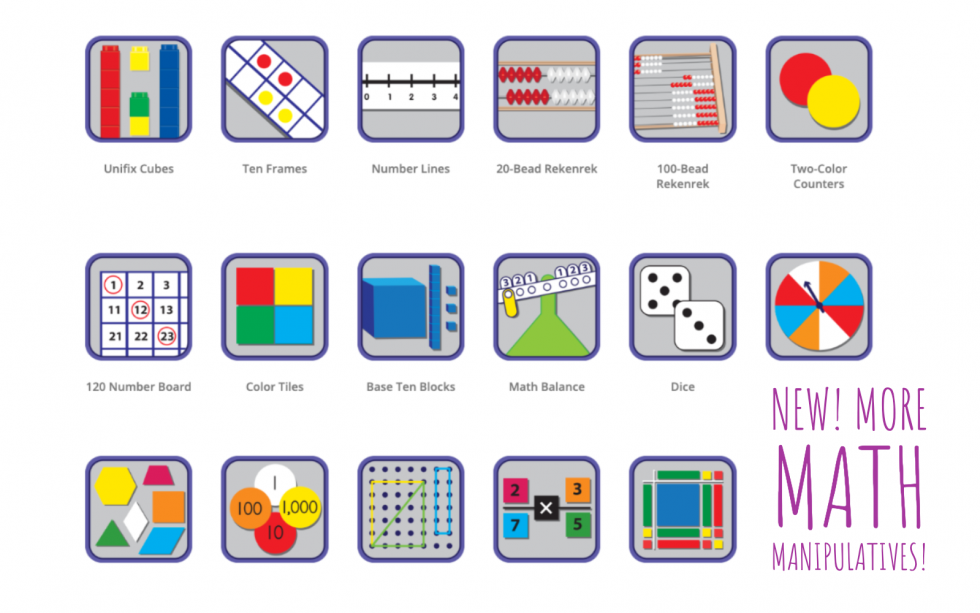
As many of us have discussed, there is genuine growth occurring in the creation of online resources that are accessible from a Chromebook. Today I am excited to bring your attention to the Didax library of free online math manipulatives!
This set of tools includes unifix cubes, number lines, rekenreks, base ten blocks, prime factor tiles, algebra tiles and more!
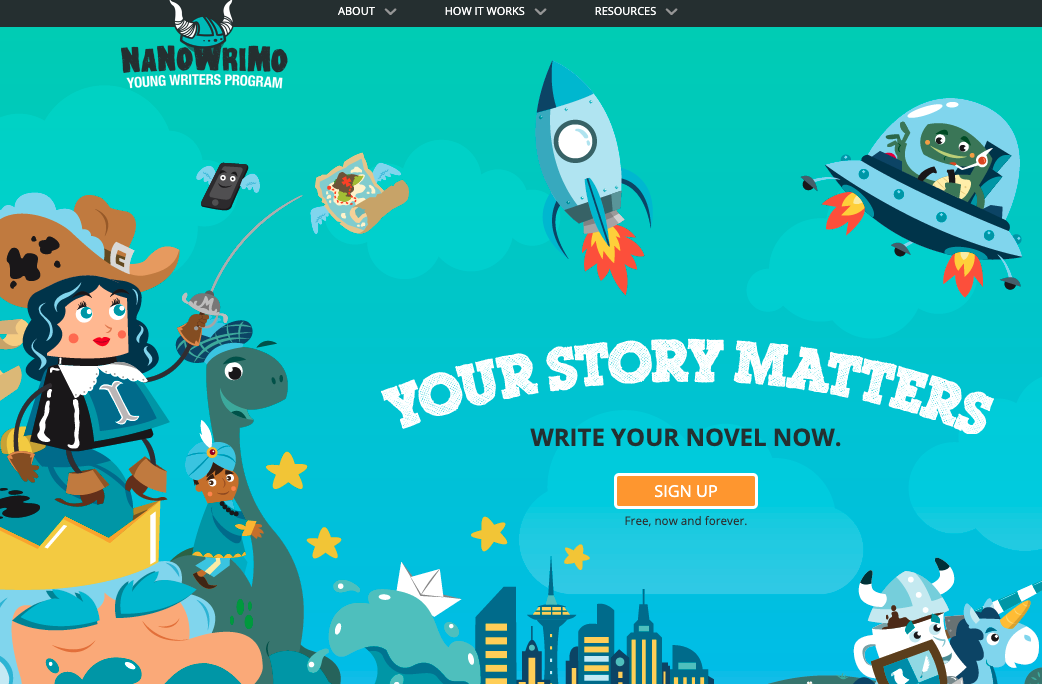
National Novel Writing Month is a fun, empowering approach to creative writing. The challenge: draft an entire novel in just one month. For 30 wild, exciting, surprising days, you get to lock away your inner editor, let your imagination take over, and just create!
NaNoWriMo only collects first names of student users and birthdates (for the purposes of protection and security) and NEVER asks for last names. Students use a screen (user) name and can upload an avatar to personalize their experience.

This edition of Ed Tech Tips, Tricks & Hacks contains nuggets of wisdom on:

Help Teaching is a website where teachers can create printables for their classroom. The free version will allow you to make a test or quiz of up to 10 questions. There is content for all subjects and all grades on this site.
We Video is a free online video editor. To access it for free, there are a couple of limitations. The application will limit videos to 5:00 in length, which generally speaking is more than enough for any class project. If needed, a student could separate their video into parts and submit it in segments for grading.
The free We Video also limits users to 1GB of storage.
Finally, We Video will put a watermark on videos that were created using their free utility, but the brain tunes that out quickly.

This edition of Ed Tech Tips, Tricks & Hacks contains nuggets of wisdom on:
Inking – writing on top of an image, otherwise known as annotating is possible using a Chromebook. Our amazing Lan-Tech, Bailey has put together this “How-to” slideshow to assist teachers who want to use it, or who have used it in the past but now can’t find it.
This is a pretty handy skill to have for teaching in GSuite.
The wonder of cloud software is that when they update the application, all users benefit immediately.
All teachers and students in CESD are provided with a full license to Kami. If you do not see the purple circle with the letter K in the upper portion of your screen, click here to install it!
Kami is a fantastic annotation tool for teachers to use during instruction. It is, additionally a wonderful piece of assistive technology for students who struggle with various disabilities that negatively impact their output and ability to show their comprehension of the content being taught.
Documents in .pdf form are ideal for Kami. If you wish for Kami to be able to read the content to your students (it does, indeed, have this capacity), your .pdf will have to be scanned using OCR (Optical Character Recognition) as that is what turns the digital version into actual letters as opposed to the “dots” of a photocopy-type scan. There are heaps of applications for smartphones that offer OCR. Snapverter is one of these applications. Made by the same company that makes Read & Write, Snapverter can be installed on your phone and in a matter of seconds you can have an OCR-scanned document for your students who struggle. It’s literally that easy.
The Kami toolbar has seen some changes this fall. These changes are in response to user feedback, so don’t ever make the mistake of thinking giving ed tech companies is a waste of time; it absolutely is not! You presently have the choice between the new or the old toolbar, so if you want to test out the new toolbar (if you’re new to Kami, you should just go right to the new toolbar so you aren’t learning the old one only to have to do a second run at learning when they discontinue the old one!) We will tackle how to enable the new toolbar in a moment. First let’s look at WHAT Kami even offers.
At the heart of Kami is the ability to close read and move through files. To do this we have:
To annotate, highlight or otherwise edit your file you can use our selection of markup tools:
To add some color and fun to your file you can try:
Lastly, you can insert a range of media into your Kami file:
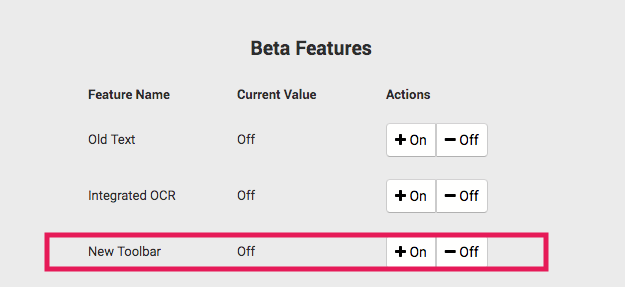
If you need to go back to the old toolbar you can turn it back off there, but please let the folks at Kami know why you went back to the old one (do so by emailing their support as eventually they will fully migrate to the new layout. Email address is support@kamiapp.com.)
Much of the content posted here comes directly from Kami’s own blog – it’s super awesome, and you should check it out ASAP!
This edition of Ed Tech Tips, Tricks & Hacks contains nuggets of wisdom on:

This edition of Ed Tech Tips, Tricks & Hacks contains nuggets of wisdom on:
These may not be the official terms for the software, but I’m going to choose to use these terms to try to help with the distinction between “cloud” software and installed software. To ensure our definitions are aligned, when I refer to static software I am speaking of software that you purchase and install to your hard drive (back in the day, on a disc or CD). By dynamic software I am speaking of applications we use that are updated automatically without incurring additional costs.
The technological revolution has occurred at an alarming rate. As a society, we’ve not had the internet in our homes for even 25 years yet. And if you recall that first internet we all had (it used your telephone cord – back when telephones plugged into the wall) and it made “that noise” when it connected you to the internet.
Once you were connected, you had to wait… for practically everything to download. Remember how images looked as they gradually loaded onto your screen? The internet, as it were, could barely handle one-way traffic – it sent data to you. Few websites offered any interactivity whatsoever. The Internet was still a baby.
Then along came cable internet! We could bring in the guys from Shaw to hook this modem thing into our cable jack and it would allow data to travel through those wires. And it was WAY faster. It was also the era of
Napster where people were beginning to use the web interactively. To share music illegally. (You’ve gotta love humans). Regardless of the ethics of sharing music, the capacity of the internet to handle traffic was improving! It’s around this time that Web 2.0 began to be a thing. And all “web 2.0” means is the internet with two way traffic. News stories that anyone and everyone can count on. YouTube videos that provoke discussions. Social Media. The Internet became a place where we could participate. We could collaborate. It ushered in a new era of computer usage. (For those who are curious, web 3.0 is where the internet will begin to move into 3D cyberworld.)
GSuite is a prime example of the evolution of web 2.0 – the dynamic web – making its way into productivity software. With GSuite we are never “three versions behind” in our software. It updates automatically as Google rolls out updates. Google Classroom is the same – when I began using Google classroom in 2014 when they first introduced it, there were some things that needed attention. It was obvious that the application was created by software engineers and coders, not by teachers. But the question mark in the bottom left of the screen allowed teachers to give feedback. The first feedback I ever offered was this:
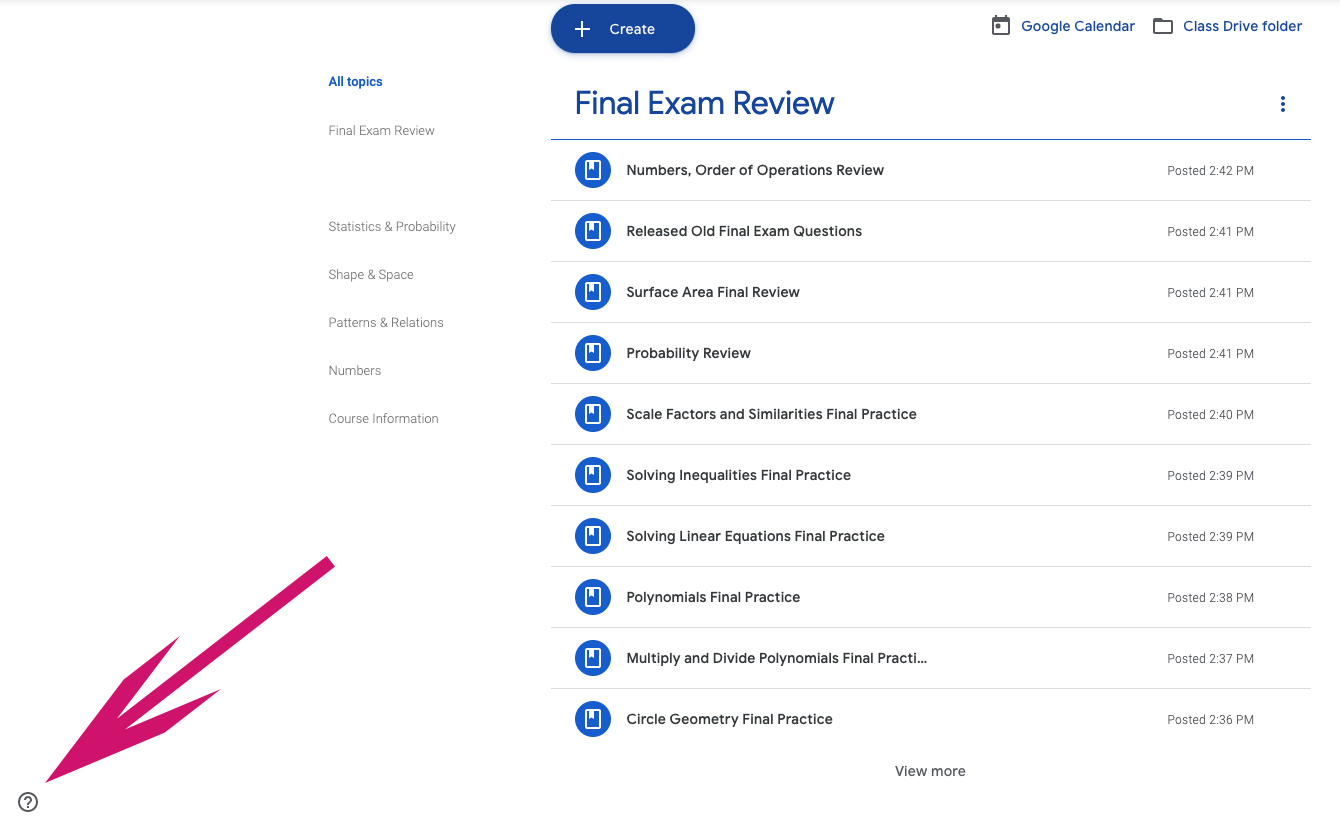
I need my students to be sorted (or able to sort) alphabetically by last name.
That’s classroom 101 to a teacher. Not so obvious to a software developer. We don’t understand their job, they don’t understand ours. But with feedback, improvements come. Around the end of the first semester I came to work one day, and ALL MY CLASSES WERE IN ALPHABETICAL ORDER!
I didn’t have to install/update/patch anything to have this take place. When Google had the code ready to make this happen, it happened.
This process of updating software in real-time is the reality of web 2.0. Think of your smartphone – almost daily you likely have at least one app that updates itself (or depending on your settings, asks you to update it).
So, as we move to Google as our backbone, we now have software that is dynamic. It updates. It improves. Without requiring money, time or skills from us. It’s pretty awesome, to be candid.