Kami – Some Good Fall 2019 Updates

The wonder of cloud software is that when they update the application, all users benefit immediately.

All teachers and students in CESD are provided with a full license to Kami. If you do not see the purple circle with the letter K in the upper portion of your screen, click here to install it

Kami is a fantastic annotation tool for teachers to use during instruction. It is, additionally a wonderful piece of assistive technology for students who struggle with various disabilities that negatively impact their output and ability to show their comprehension of the content being taught.

Documents in .pdf form are ideal for Kami. If you wish for Kami to be able to read the content to your students (it does, indeed, have this capacity), your .pdf will have to be scanned using OCR (Optical Character Recognition) as that is what turns the digital version into actual letters as opposed to the “dots” of a photocopy-type scan. There are heaps of applications for smartphones that offer OCR. Snapverter is one of these applications. Made by the same company that makes Read & Write, Snapverter can be installed on your phone and in a matter of seconds you can have an OCR-scanned document for your students who struggle. It’s literally that easy.

The Kami toolbar has seen some changes this fall. These changes are in response to user feedback, so don’t ever make the mistake of thinking giving ed tech companies is a waste of time; it absolutely is not! You presently have the choice between the new or the old toolbar, so if you want to test out the new toolbar (if you’re new to Kami, you should just go right to the new toolbar so you aren’t learning the old one only to have to do a second run at learning when they discontinue the old one!) We will tackle how to enable the new toolbar in a moment. First let’s look at WHAT Kami even offers.

Reading and manipulation tools 

At the heart of Kami is the ability to close read and move through files. To do this we have:

  • Select tool: Your basic mouse tool allows you to interact with the file without creating annotations. You can also use it to copy and paste.
  • Hand tool: Expressly for navigating the file, the hand tool enables easy scrolling. 
  • Text to speech: This tool has two modes. Simply clicking it will read the whole file out loud from the beginning. Alternatively, you can highlight the text selection that you wish to hear. For added fun try changing the accent!
  • Dictionary: This tool allows you to select a word that you would like to see defined.

Markup tools 

To annotate, highlight or otherwise edit your file you can use our selection of markup tools:

  • Highlight: This tool allows you to highlight text throughout a file. You can also free draw with the Highlight Tool by selecting the ‘Box Highlighter’ option.
  • Comment: This tool can be used to select a section of text and then make associated comments within the automatically created annotation box. Comments or annotations can be made through the keyboard, via voice typing (where spoken words are translated into text on the page), audio or video. 
  • Text box: This tool allows you to place text boxes anywhere in their document, perfect for filling in forms. Both the color and size of the text can be adjusted as needed.
  • Equation: This tool allows you to create equations by using the symbols palette (click the pi symbol to see the full selection).
  • Strikethrough: The Strikethrough Tool allows you to cross out text. This is most useful for those editing or proofreading a document.
  • Underline: The underline tool can be used to help emphasize a point or draw attention to the area.

Creativity tools 

To add some color and fun to your file you can try:

  • Drawing: This tool allows for freehand drawings to be made anywhere on the file. The stroke thickness and transparency can be adjusted, as can color. The tool can be adapted to create perfectly straight lines by holding shift before drawing.
  • Shapes: This tool allows you to place shapes on your PDF. You can create circles, squares, and lines in any colour and to whatever size.
  • Eraser: The eraser tool removes shapes, text, signatures, and drawings that have been made onto your PDF. To use the eraser tool, simply click and drag over the annotation that you wish to remove.

Features for inserting media 

Lastly, you can insert a range of media into your Kami file: 

  • Insert image: Using this tool you can insert an image from a variety of locations: your own documents, Google Drive, Google safe search or a webcam photo. 
  • Insert signature: This is used to upload and store your signature to sign PDF files quickly. You can upload an image of your signature, draw it into the file or even draw on your phone – whichever method works best to get the highest quality version. 

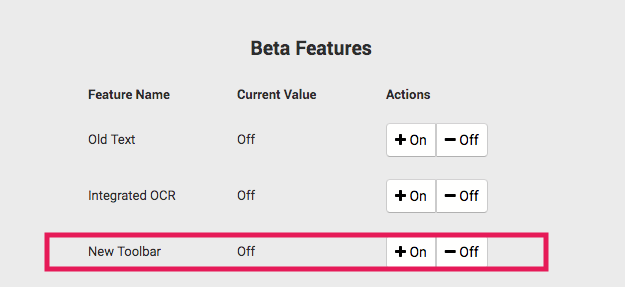
So, to access the new Toolbar, do the following:

  1. Head to settings (by clicking on your account name at the very top right corner), 
  2. Scroll all the way to the “Beta Features” section right at the bottom,
  3. Find the line that says “New Toolbar” and select “On”.
  4. Refresh your page.

If you need to go back to the old toolbar you can turn it back off there, but please let the folks at Kami know why you went back to the old one (do so by emailing their support as eventually they will fully migrate to the new layout. Email address is support@kamiapp.com.)

Much of the content posted here comes directly from Kami’s own blog – it’s super awesome, and you should check it out ASAP! 

Ed Tech Tips, Tricks & Hacks – Vol. 2, Issue 1

This edition of Ed Tech Tips, Tricks & Hacks contains nuggets of wisdom on:

  • CESD Learning Hub – Level A Assessment
  • Free CALM app subsscription for Teachers
  • Wakelet for educators
  • 60+ awesome apps that integrate directly to Google Classroom
  • 17 Little Known Google Tips for Classrooms
  • Google’s Incredible Hidden Gems & Secrets
  • CK-12 PLIX for senior high math and science
  • Buncee Ideas Lab
  • SeeSaw
  • Pear Deck
  • Whooo’s Reading
  • Educreations
  • Geogebra Graphing Calculator
  • Social Media groups for teachers
  • Image resizer – free from Shopify
  • Hippocampus

Ed Tech Tips, Tricks & Hacks – OER Edition


This edition of Ed Tech Tips, Tricks & Hacks contains nuggets of wisdom on:

  • OER Commons
  • Amazon Inspire
  • Net Texts
  • OASIS Search
  • Share My Lesson
  • OER World Map
  • PhET Interactive Simulations
  • Problems of the Week – National Council of Teachers of Mathematics
  • Approved Free Textbooks – American Institute of Mathematics
  • OER – Big List of Resources
  • SeeSaw
  • Educause OER Resources
  • Find OER
  • Alberta OER
  • BC OER Textbooks

Dynamic vs. Static Software

These may not be the official terms for the software, but I’m going to choose to use these terms to try to help with the distinction between “cloud” software and installed software. To ensure our definitions are aligned, when I refer to static software I am speaking of software that you purchase and install to your hard drive (back in the day, on a disc or CD).  By dynamic software I am speaking of applications we use that are updated automatically without incurring additional costs.

The technological revolution has occurred at an alarming rate. As a society, we’ve not had the internet in our homes for even 25 years yet. And if you recall that first internet we all had (it used your telephone cord – back when telephones plugged into the wall) and it made “that noise” when it connected you to the internet.

Once you were connected, you had to wait… for practically everything to download. Remember how images looked as they gradually loaded onto your screen? The internet, as it were, could barely handle one-way traffic – it sent data to you. Few websites offered any interactivity whatsoever. The Internet was still a baby.  

Then along came cable internet! We could bring in the guys from Shaw to hook this modem thing into our cable jack and it would allow data to travel through those wires. And it was WAY faster. It was also the era of 

Napster where people were beginning to use the web interactively. To share music illegally. (You’ve gotta love humans). Regardless of the ethics of sharing music, the capacity of the internet to handle traffic was improving! It’s around this time that Web 2.0 began to be a thing. And all “web 2.0” means is the internet with two way traffic. News stories that anyone and everyone can count on. YouTube videos that provoke discussions. Social Media. The Internet became a place where we could participate. We could collaborate. It ushered in a new era of computer usage. (For those who are curious, web 3.0 is where the internet will begin to move into 3D cyberworld.)

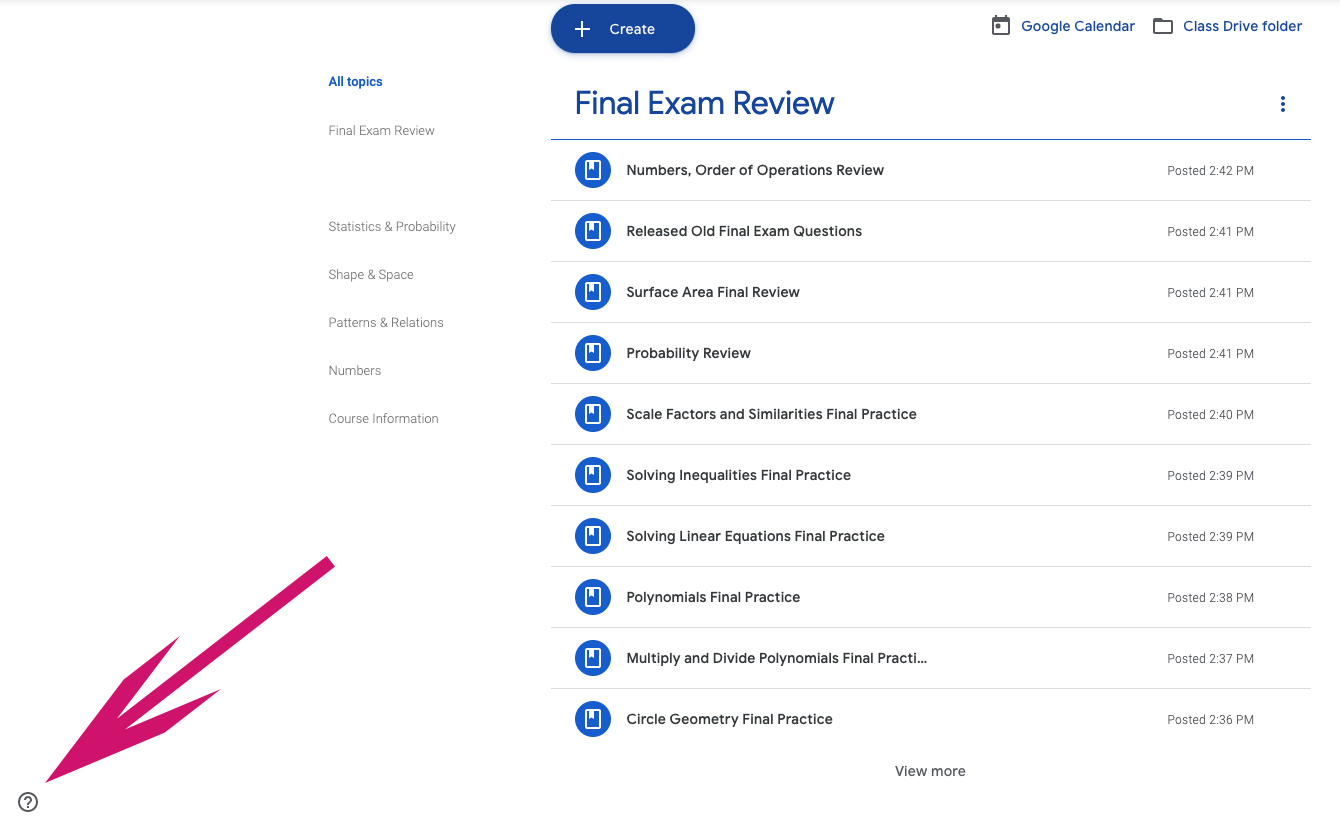
GSuite is a prime example of the evolution of web 2.0 – the dynamic web – making its way into productivity software. With GSuite we are never “three versions behind” in our software. It updates automatically as Google rolls out updates.  Google Classroom is the same – when I began using Google classroom in 2014 when they first introduced it, there were some things that needed attention. It was obvious that the application was created by software engineers and coders, not by teachers. But the question mark in the bottom left of the screen allowed teachers to give feedback. The first feedback I ever offered was this:


I need my students to be sorted (or able to sort) alphabetically by last name.

That’s classroom 101 to a teacher. Not so obvious to a software developer. We don’t understand their job, they don’t understand ours. But with feedback, improvements come. Around the end of the first semester I came to work one day, and ALL MY CLASSES WERE IN ALPHABETICAL ORDER!

I didn’t have to install/update/patch anything to have this take place. When Google had the code ready to make this happen, it happened.

This process of updating software in real-time is the reality of web 2.0. Think of your smartphone – almost daily you likely have at least one app that updates itself (or depending on your settings, asks you to update it). 

So, as we move to Google as our backbone, we now have software that is dynamic. It updates. It improves. Without requiring money, time or skills from us. It’s pretty awesome, to be candid.

Ed Tech Tips, Tricks & Hacks #5 – The Final days of Windows edition

This edition of Ed Tech Tips, Tricks & Hacks contains nuggets of wisdom on:

  • Ed Tech Framework site
  • BoClips
  • TES Blendspace
  • ClassroomScreen.com
  • Clarisketch
  • ReadLang
  • Math Pickle
  • Games & Quizzes in Google Earth
  • Text on a Screen and Meaning
  • Chrome Music Lab
  • 5 Google Drive Tips for New Users
  • 5 Answers to Questions frequently asked by new Chromebook users
  • Recreating your “desktop” in Chrome

See Original | Powered by elink

Ed Tech Tips, Tricks & Hacks – French Immersion Edition

This edition of Ed Tech Tips, Tricks & Hacks contains nuggets of wisdom on:

  • SeeSaw
  • Bout de Gomme
  • Des activités de Momes
  • Français facile podcast
  • Les Nouvelles – in slow French
  • Apprends Avec Moi – YouTube Channel
  • Mouk en français – You Tube Channel
  • Madame Belle Feuille
  • EBooKids – French Books
  • OrthoLud – Jeux et exercices en ligne
  • Amélie Pepin
  • GEO Ado
  • Coucou, des amis pour tous les petits!
  • Jeux éducatifs pour enfants
  • Grandir avec Nathan
  • Histoires pour enfants
  • 1 jour 1 actu – l’actualité à hauteur d’enfants

See Original | Powered by elink

Place Value Digital Manipulatives

Instead of looking for all those place value blocks you used last year (they’ve gotta be there…. somewhere…) why not sign out a cart of chromebooks and provide kids this link (If you have a class website or use Google Classroom this is a must-have link!) to the Number Pieces by the Math Learning Centre so that everyone can use the manipulatives, and you’re not left at the end of the day picking up all the “ones” blocks off the floor!

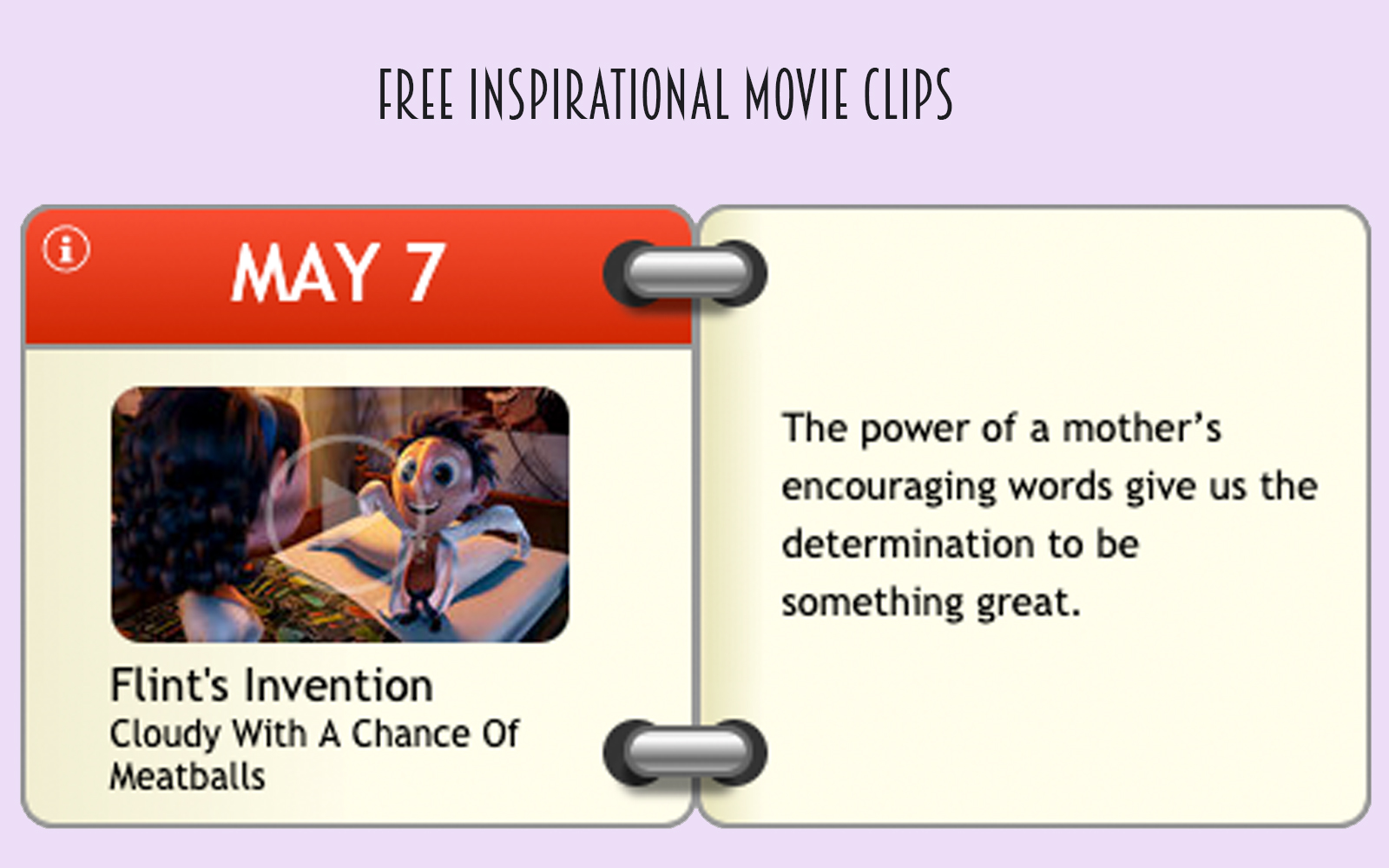
Free inspirational Movie Clips

Did you know there are online resources out there that offer just the movie moments you may be looking to use in your classroom? Clips you may not have known about, clips you may have forgotten about, or other just plain good uses for movie clips. Wing Clips is one such site. Though it appears that its backbone is through a religious organization, there are still many resources to consider. 

Another site is ClipShout. This site is only free for 14 days, but also contains a large library of potentially useful movie clips for teachers.

Digital Citizenship – Case Studies

This website from a school in BC has a list of stories of people who have been involved in various situations where some different choices as it pertains to digital citizenship could have changed the course of their lives. They made choices, and they live with the consequences of those choices. If you’re needing a story to tell your class to underscore a point you’ve made or need to make, you may find what you’re seeking here.


Plickers – Top App for all grades

This app is a super cool use of technology in the classroom in that you only need ONE DEVICE to engage an entire class. The teacher needs a cell phone or a tablet – that’s it.

In a nutshell (and it is so easy!)….

BEFORE CLASS…
Open an account at www.plickers.com
Print off a set of the cards at https://www.plickers.com/cards – they look like space invaders. They’re weird!!!
Enter classes and students you would use the app with.
Download the Plickers app to your phone.


Plickers will automatically assign one of those cards you printed off to each student.
Create a bank of multiple choice questions on your computer, in your plickers account.
Select the questions you wish to assess during your classes and add them to the queue for that class.

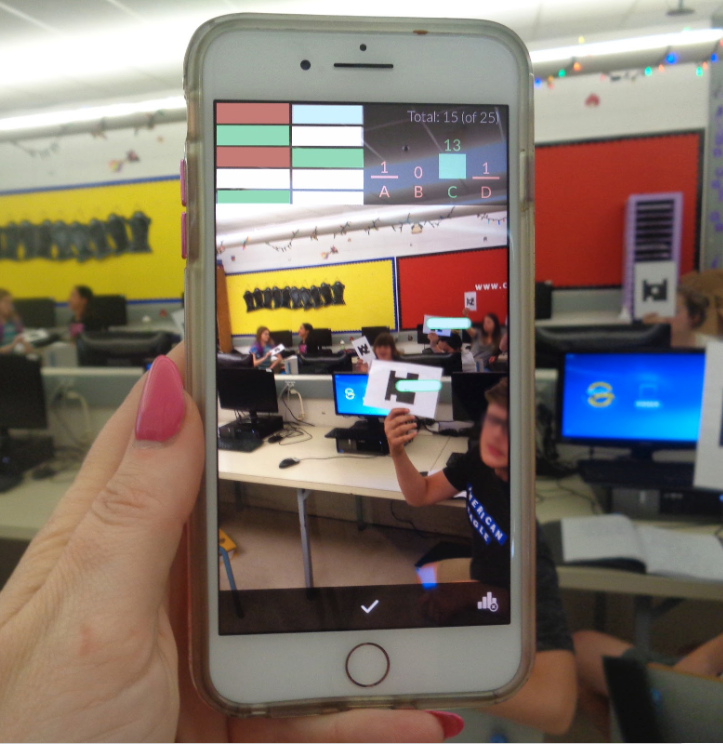
(Above photo is from my own class)

IN CLASS

Distribute the cards to the students as per Plickers’ assignment of them.
Broadcast (from your Chromebook) www.plickers.com on your TV or through your projection system and click on LIVE VIEW (this is optional, but kids LOVE it).
On your phone/tablet choose the class you are teaching during that block.
Select one of the questions from the queue that you wish to assess for student understanding.

Students will select their response from the 4 multiple choice responses and will hold their unique card up with the letter pointing UP that represents their choice to respond with.

You will hold your phone up and scan the classroom and the students’ responses will be logged. 

WHY TEACHERS LOVE IT

– First of all, IT IS SO EASY TO USE

– A red or green oval will appear above the heads of your students. Green, of course, indicates they answered correctly, red indicates their response was incorrect. This particular app keeps the teacher INVOLVED and ENGAGED with the learners. You see with your eyes in a matter of seconds who understands the content and who is struggling. It’s not just data on a screen; it’s live, it’s real-time, and it’s an actual visual of your classroom. You finish the class block with a lot of good information as to what needs to be re-taught or reviewed, and with whom.

– Because the shapes appear so random to the human eye (and the letter markings are printed so faintly) cheating is not possible unless a student shouts out their answer.

– It uses the camera of your phone/tablet with Augmented reality features to give you the visual representation of learning as you view your class. The photo was taken in Michelle Baragar’s classroom during the 2017-2018 school year. 

THINGS TO NOTE:

Laminating the cards will make them last longer, of course, but depending on the positioning of windows in the classroom, the glare from the laminate can make scanning the students’ cards a wee bit more challenging.

Students can change their mind about a question. All they need to do is change the direction they are holding their card and ask you to re-scan it.

Sick of Kahoot?

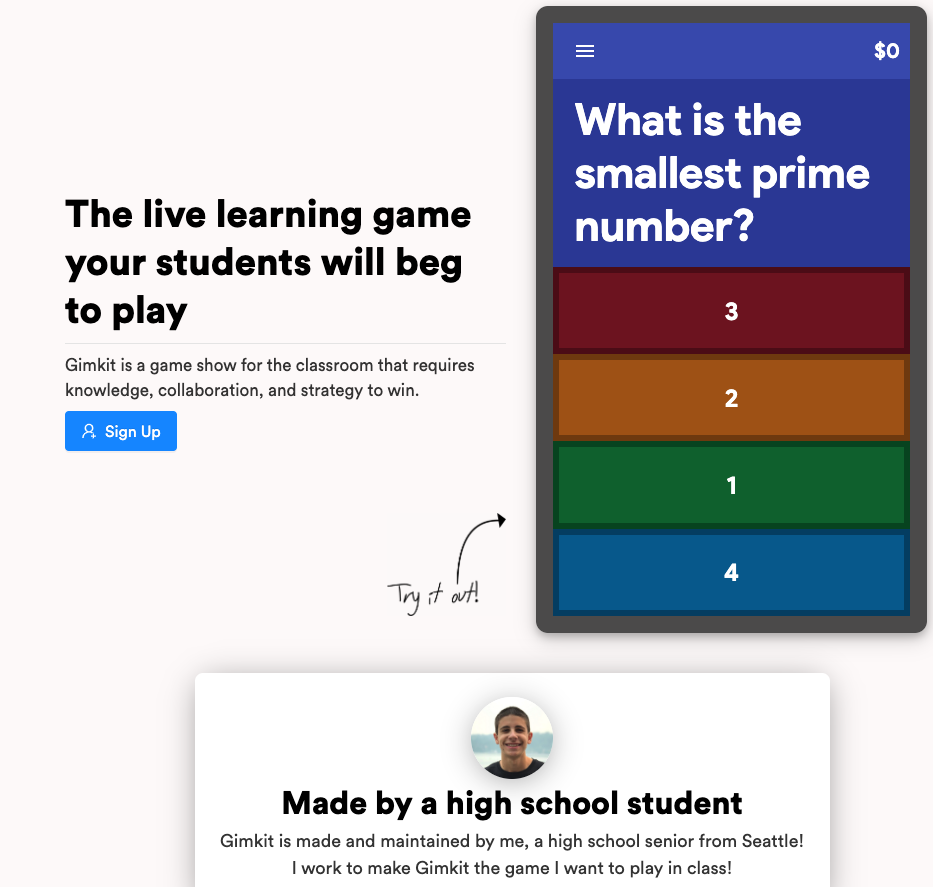
I know in my classroom last year, kids were getting pretty sick of Kahoot. They loved the engagement, but it was the go-to app that EVERY teacher used. It wasn’t novel any more. It was common. I’d love some feedback on this newcomer to the domain of “Student response systems”. It was designed by a high school student, it’s free, and it has a gamified element where their accumulated points from in-class engagement allows them to make “in-game purchases” with the points – so they have more at stake than just having their names appear on the podium at the end of the quiz. In theory, it should reduce kids answering with silly responses because of the secondary game that their overall points afford them.

Many thanks to Steve at CP Blakely for his professional review after trying it out in his classroom: “Overall, loved the experience and engagement levels for students, just wish there was a bit more on the teacher’s end of things.”

PROS:
– Students review materials at their own pace (as opposed to a whole-class game of Kahoot) – You don’t have to wait for the class to go to the next question
– You can “do something” with your points (i.e., the shopping experience), which in turn motivates students even further to answer questions correctly
– Highly engaging

CONS:
– If you don’t have an even number of students, the teams will not have the same amount of people, giving larger teams the advantage when collecting cash.
– Some students reported some lagging/auto-tapping answers.
– As a teacher, the free version of
GimKit does not allow me to edit “Kits” (or games) I’ve already created. I didn’t know this before I started one, and when I went back to edit it later, I realized I couldn’t. I could have made a new one, but we’ve only got 5 games with the free version as well.
– The data in the reports is not as manipulable or user friendly as Kahoot’s is (if we’re just comparing these two platforms), which is the sweet-sauce for me in using these sorts of games.

Google Classroom Hack You Need

I discovered this little trick by accident. But it made a HUGE difference to me as a teacher.

For the past 18 years, I have taught Technology in a junior high. I had my students twice per week for 40 minutes. That meant that my total number of students to issue grades for by November was in the range of 360. To boil that down – I had a HEAP of missing assignments to try to track down. It was HARD. Of the 360 students I was teaching, generally about 220 of them were grade sevens, new to our school, and unfamiliar to our teaching staff. So, I didn’t even really know which students to even keep an eye on. Here’s what I discovered.

I would start a blank document in my own Google Drive and I’d put the assignment name on it. It didn’t matter if it was a doc, a sheet or a slides assignment. I’d start a blank one with the assignment name on it, and then I’d close it down. Weird right?

Then I’d type up my assignment instructions in Google Classroom. I’d attach that blank document to the assignment and then I’d change the drop down menu to say “Make a copy for each student”. (It’s still a blank document!)

What that did was, it gave me a thumbnail view in the “Unsubmitted” view. Students who were taking the assignment and running with it would have typing appear on their thumbnails. Students who were not making progress continued to have shiny white (blank) thumbnails. I knew at a glance which of my students were needing me to intervene. It saved me SO MUCH WORK AND SO MUCH STRESS! This little discovery was a game-changer for me.

Free Math Apps for Chrome

Fractions? Geoboards? Clocks? Vocabulary cards? Number Frames? The Math Learning Centre offers a small, but high quality selection of Chrome apps to assist with teaching mathematics. Have a student who has finished their work early? This resource may have what you need! Equally, if you have a student who is struggling, you may find something of value here.

Coin Games – Learn About Money

Learning about money has always been challenging. It may perhaps be even more challenging to a generation who sees adults using much more plastic and now even cell phones as a mechanism for payment. But the fundamental concepts of currency and financial transactions are as important as ever.

The MATH IS FUN website has some games for kids to play to assist with learning about money – and they even have CANADIAN coins! 


Desktop Publishing with Lucidpress

One of the most common challenges new users to Chrome face is finding a replacement for a desktop publishing program. While there are many such programs on the market, one of the more familiar ones is Publisher.

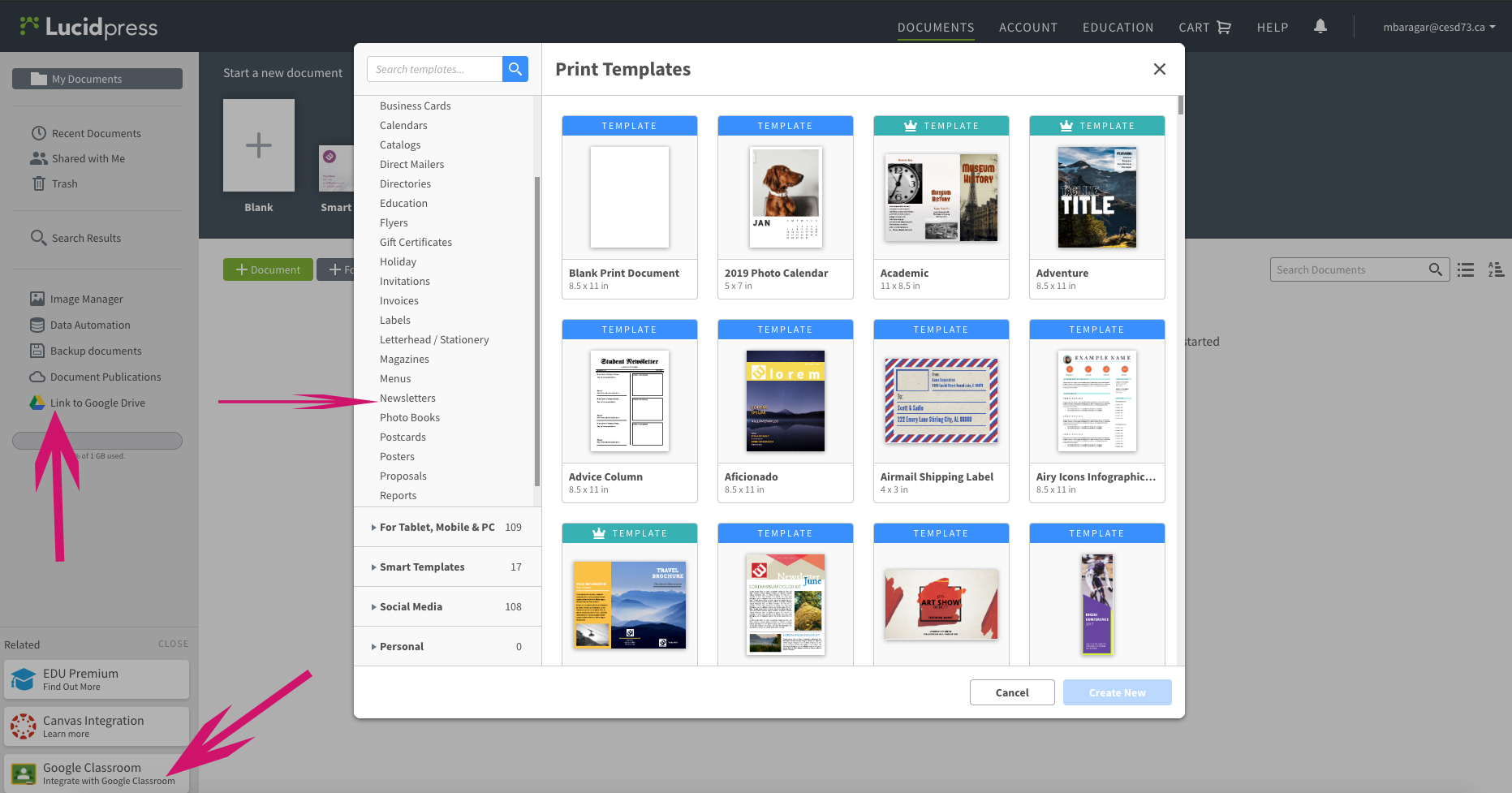
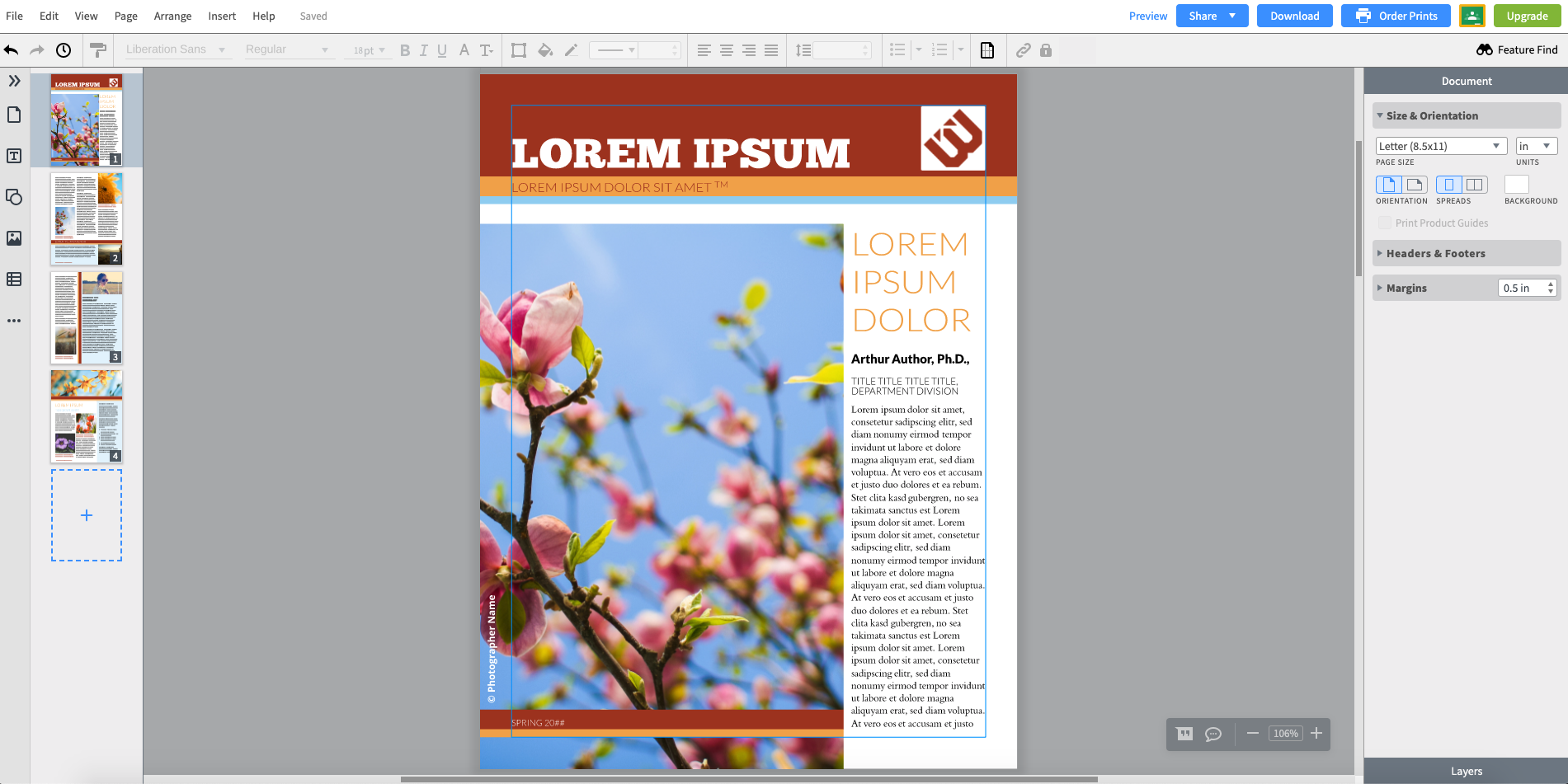
The cool thing about the replacement – it’s WAY better than Publisher. The designs are more modern, the fonts are cooler and the layouts are not from 1995. Take a look at Lucidpress. The website itself boasts a nice layout, simple interface, and direct connection to both Google Classroom and Google Drive.

Further, there is a Lucidpress extension for Chrome, putting the power of Lucid right at your fingertips!

Pin It on Pinterest