
Are You Ready to Create your Virtual Classroom with Bitmoji?

You’ve seen other teachers using them. They’re super cute. Students love them. They bring a sense of excitement and reality to the virtual classroom. But how…. how do they make these Bitmoji classrooms?

Math Bitmoji Classroom

First things first. That little white-haired teacher is my Bitmoji. If you don’t yet have a Bitmoji, you’ll need to download the app to your tablet or smartphone. Once you’ve done that, you can begin the fun process of creating a miniature cartoon-version of yourself. After you’ve created your little mini-me, Bitmoji provides you with a wide array of choices and positions using your creation. 

I created this Math Bitmoji Classroom using the background and items from the Deluxe Bitmoji Classroom Template Set that I sell on Teachers Pay Teachers. Each of the 16 items on the shelf link directly to an online math manipulative allowing for quick access to these tools in a virtual classroom setting, or in a traditional classroom. Additionally, the clock links to a website where time-telling is the focus. These links can be easily changed or adjusted at any time.

So, how do we create a Bitmoji Classroom? I build mine in Google Slides, but Powerpoint or Keynote are also viable options. 

The first thing I do is set the background. In Google Slides, I right click on the background of the slide, and choose an image. For my virtual classrooms that I sell on Teachers Pay Teachers, I have set the sizes for the background to fit widescreen Google Slides (1600 by 900 pixels). I have built my Bitmoji Classroom backgrounds in Adobe Illustrator to prevent the images stretching, skewing or pixelating once they are set as the background.

Adobe Illustrator is part of the Adobe Creative Cloud Collection

Once you have the virtual classroom background set, you’ll need to decorate it and furnish it! If you are going to create this yourself “from scratch”, you will want to make sure that the images you use are free from copyright restrictions. 

In a Google image search, you’ll need to go into the “More” menu and under “Usage Rights” you’ll need to make sure “Creative Commons license” is checked off. You can see from the image below that it does NOT default to show Creative Commons License images.

If you choose to build your Bitmoji classroom using Google Slides, you can search for images inside of slides, and the filtration for Creative Commons licensed images will occur automatically. Google understands that if you are inserting an image into a slide that you are creating (or a doc for that matter), that you are REUSING the image, and therefore Creative Commons licensing is warranted.

From there, it’s really the same as creating a slide for a presentation. You can drag the images around, and create fun classroom scenes!

If an image ends up being “behind” and image that you want it in front of, you need only right click on the image, choose “order” and then send it backward or bring it forward to change this scenario! In the image below, my Bitmoji appears behind the chair. (A bit tough to see with that drop menu in the way, but you see what I mean.) I will choose “bring to front” for her, as the teacher image on this slide can be in front of everything. If I wanted her to be behind a desk, I’d need to play with it a bit.

Of course, you can always pick up a pre-made Bitmoji classroom template and just do the fun part…
copy-paste your classroom decorations into one of the pre-made virtual classroom templates!

And just in case you prefer to learn visually with video, I’ve prepared this video that shows you exactly how to create your virtual Bitmoji Classroom!

29 Ideas to Engage Students in Online Learning

Online fatigue is real. Distracted students are real. Teacher frustration is real. So what do we do?!?!

Thankfully there are a few things we can bring to bear to try to spice it up and keep both ourselves and our students engaged.

The infographic presented here was built from a variety of resources, including the book Engaging Learners Through Zoom.

This page contains affiliate links. You can read my disclosure here.

Students Keep Getting “Booted” From my Online Classes!

This page contains affiliate links. You can read my disclosure here.

As we move toward a week of at-home learning for all students in Alberta at the start of January 2021, I offer this tutorial to try to help families maximize the capacity of their home internet connection without incurring additional costs to the internet service providers. There are many things that can be done for free to try to improve the Google Meet or Zoom experience.

This video will give an analogy for the internet and bandwidth and then take you through some ideas to improve your home connection.  I’ve used this analogy for fifteen years to explain bandwidth to eleven year olds. It will help make sense of the issues at hand, and can be given to families “as-is” if they’re having problems.

Summary

  • Move closer to your router. Try to attain 3 bars.
  • Do a speed test of your download & upload speeds.
  • When possible, download content the night before it is needed (especially video content).
  • Enable offline mode for GSuite (Google Docs, Slides, Sheets).
  • Powercycle your router.
  • Set Google Meet’s layout to “spotlight” (and don’t use blur/change background).
  • Remove household cell phones from the wifi, or turn them off.


Glitches in Google Meet

It’s so stressful!! Teaching online is difficult enough, but every time I try to teach with Google Meet, I DON’T HAVE THE CONTROLS! I can’t record it, I can’t start breakout rooms, I can’t mute students or remove anyone for bad behaviour. It’s embarrassing, not to mention anxiety-provoking. I don’t know what I’m doing wrong.

YOU ARE NOT DOING ANYTHING WRONG.


DO NOT USE THE GOOGLE MEET LINK FROM GOOGLE CLASSROOM.

1. The link that Google Classroom generates is glitchy. We have learned from our remote learning troubleshooting this fall that using the Meet link that Classroom publishes on the banner does not always ensure that the teacher is the owner of the session. IN MY SCHOOL DISTRICT, We realized these links were glitchy when we had one of our remote teachers log in to her own Meet first (ahead of all students) – 8:50 am according to the Google server log. At 8:58 her first student logged in, and that student was in control of the meet.

2. A Meet address that you have created seems to have expired. This seems to occur when the meet is given a nickname.


To Solve These Issues

1. Go to meet.google.com and click on “Join or start a meeting”.

2. Do NOT give the Meet a nickname.

3. Copy the URL (web address) that Meet generates.

4. Paste the URL into Google Classroom as a material and apply a topic to it (I’d call the Topic “Google Meet Link”) and then drag that topic to the very top of your classwork tab in Google Classroom.

If at any time your Meet link begins to glitch (Michelle has used the same link since the first Covid quarantine in March of this year), repeat the above steps, but you’ll only need to edit the material in step 4.

Other Challenges

When things have glitches, it is often “the network” we first blame for the problems. If you are physically in a CESD school, it is highly unlikely to be the network. However, what students have open on their device can present challenges.

If students have a large number of tabs open, this can place a burden on their device, causing Meet to not have access to the local resources it needs to run. This can cause a student to be “booted” out of the meet, or can cause their video to be glitchy.

If students are at home on a PC or Mac computer, other programs they have open can steal valuable processing from that computer. Things like Fortnite running in the background, or YouTube open to play music while they listen can be quite problematic in Google Meet.

Students accessing the meet on a mobile device (smartphone or tablet) not using the actual app for Google Meet may experience challenges.

Lastly, the network in the personal space (homes) of the participants can have an impact on the meeting. The CESD network is unlikely to be at fault, but home networks may be.


Crash Course in Kami

This page contains affiliate links. You can read my disclosure here.

Originally Kami was built as a .pdf reader for Google Drive. Over time they have added new tools and features to it making it a very powerful classroom application.

This blog post offers a short video “Crash Course in Kami” that will introduce you to the annotation tools and will offer some differentiation ideas for it as well.

If you are teaching remote learners, Kami offers a lot of assistance in accomplishing that task.

Kami typically offers a 90-day trial of all the tools in this awesome extension!

Google Meet – Teach online like a PRO!

When Google rushed Meet to market in March, there were many features in the works that weren’t ready yet. The quarantine likely caught them as off-guard as it caught us.  But, now, nine months later, there are many new features in Google Meet. This 18-minute video will take you through each of the new features and demonstrate how to use each.

At 16:20 I show how I created a link on March 16 and am still using the same link almost 9 months later.

Screencastify Tutorial

Have you ever wished you could clone yourself in your classroom?

Me too. Many times it felt like there were more questions and pressing needs than places I could be at one time. 

The global quarantine of Covid has forced educators worldwide to learn some new tech skills, but what if we could cash these skills out for years to come?

That’s right, I said years!

Picture this: One year from now, you press “PLAY” on the lesson you record today, and the students in your classroom watch it. That’s right. They are in your classroom, watching a video of you teaching. And you’re there. I bet you’re wondering “Why the heck would I do that?!”  Well, doing that might let you do those one-on-one conferences with students that you always plan to do, but struggle to fit in. Reading check-ins with the younger students could happen. Discussions with students about recent assessments. Formative assessment. You know – all those things we want to do, but struggle to fit in around instruction. What if…..

If you are new to Screencastify and are looking for some help getting started, this tutorial covers the content that I went through in a live Google Meet with teachers in my school jurisdiction..  The link for Canadian Copyright law with respect to reading books aloud and recording the reading is important to check if you are considering reading to your students in a recording.

So, press play on the video, and if you have another idea of things you could accomplish while playing a lesson in your class (just don’t do it every day), leave your idea in a comment on my YouTube Channel!!


Google Jamboard – Your Digital Whiteboard

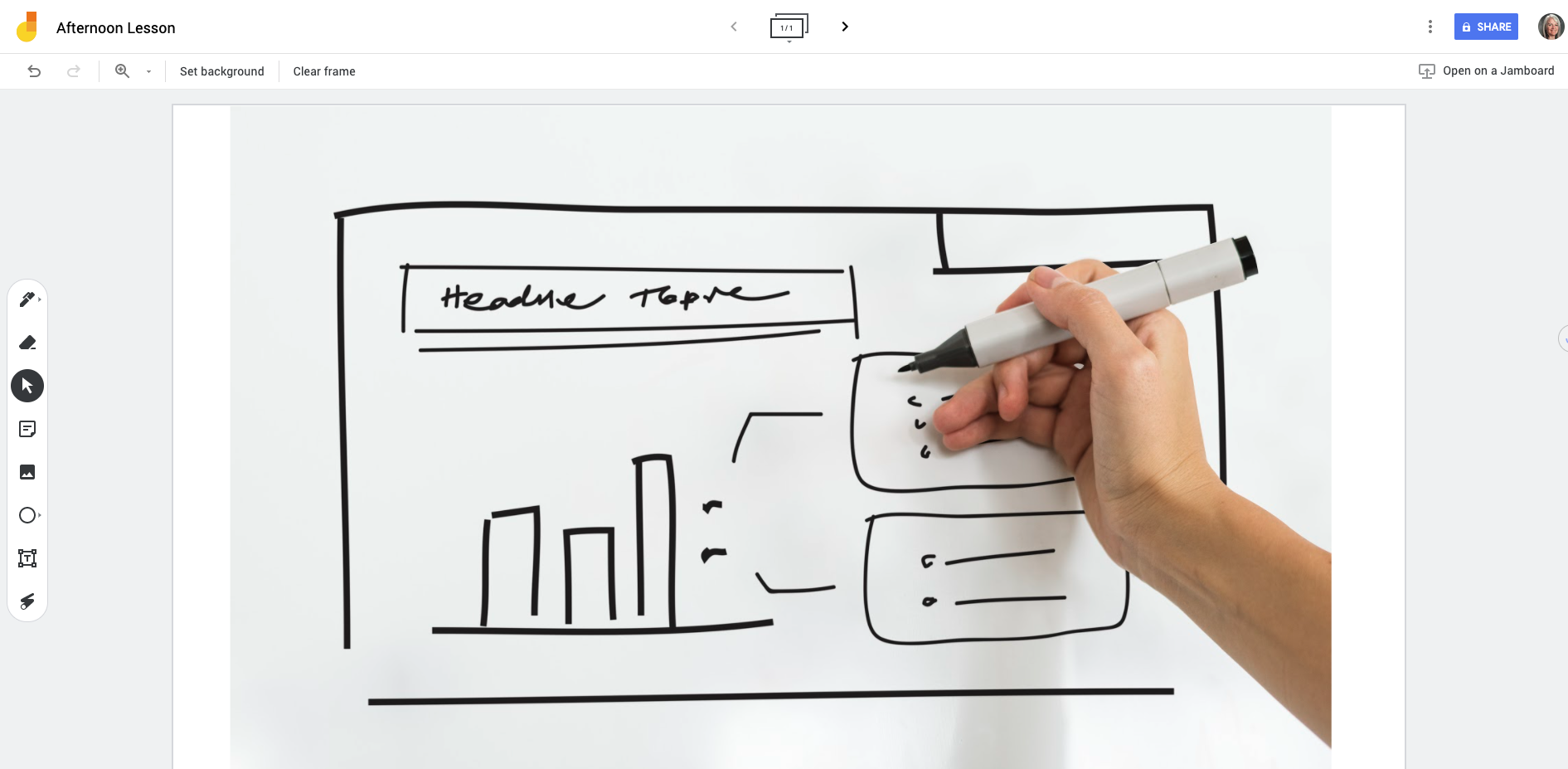
A newcomer to your Google Suite of Educator Tools is Google Jamboard which provides you with a blank screen and annotation tools. With a touch-screen Chromebook, you can now open a new “jam”, and begin drawing, instructing and demonstrating. Best of all – it saves into your Google Drive when you’re done. 

With Jamboard, you can easily bring in images, draw shapes, write, erase and illustrate. Even better – it is now built right into Google Meet. So, if you are instructing at a distance, you can open a new jam from inside Google Meet to seamlessly draw and illustrate to your students the lesson at hand.

Want to see it in action?

This instructional video might be helpful.

Upgrading Your Chromebook

If you are experiencing challenges with your Chromebook, or a student Chromebook, the first place to start is to engage in the simple process of updating the operating system. This step-by-step guide will walk you through the steps to ensure that your operating system is current, which will minimize glitchy behaviours of the machine.

Mote – Give voice feedback instead of typing

Offering feedback and formative assessment can be time-consuming. The Mote extension for Chrome offers you the opportunity to record your voice giving the feedback as opposed to typing. A great alternative for those whose keyboarding skills leave a bit to be desired.

10 Tips for Online Instruction

Teaching in a distributed learning environment (formerly called a blended learning environment), has its own pedagogical rules. While many scenarios translate easily from classroom teaching to online teaching, there are some aspects of instruction and learning that are different.

In conversation with teachers, administrators, parents and students, coupled with the educational research on distributed learning environments, we have compiled these ten tips for teachers to improve everyone’s experience when using Google Classroom.

The CESD Resource site (Teachers Share) is a brand new endeavour (#10 in the above image). To ease the burden of distributed teaching, we ask that teachers share assignments they have created (share to Michelle Baragar), and take what you can need from this site. The more we share, the lighter the load for everyone!

Pin It on Pinterest